Choose a USB-C Dock by Checking Compatibility
Start with your exact laptop model and the work you want the dock to do. Then check the host port, complete monitor arrangement, software requirements, peripheral connections, and power delivered to the laptop. These checks matter more than a connector shape or a long list of ports.
Published Updated
Write down the setup you need
Before comparing products, note your laptop’s exact model and operating system. List the monitors you want to connect, including their resolution and refresh rate, then write down the peripherals and charging needs that matter at your desk. This turns “I need more ports” into a set of requirements you can check against the laptop and dock specifications.
Consider how the equipment is used. A small accessory kit for a laptop that moves between rooms has different priorities from a fixed desk shared by two computers. A handheld gaming device is another distinct host category. An extra switch or connector is useful only if it solves a real part of your setup.[1]Shop now: 8 in 2 USB +Type C HUB Docking Station with 3.5mm Audio JackShop now: KCEVE 8K Tripe 3 Monitors KVM Switcher USB 3.0 Hub HDMI-Comp
Check the host port, displays, and power
USB-C names the connector shape, not every capability it can carry. Depending on the laptop and port, it may support data, charging, video, or a combination. Check the manufacturer’s specifications for your exact laptop and the particular port you plan to use. Look for the relevant support, such as DisplayPort video, Thunderbolt, USB4, or USB Power Delivery. Two computers with USB-C ports can have different docking capabilities.
For displays, compare the dock’s documented support with the number of screens and the resolution and refresh rate of each. Several video sockets on a dock do not establish that the laptop can drive that many independent displays. Also check whether the dock uses native video or requires DisplayLink software. That software may require installation and permissions, which can rule it out on a managed work computer.
Check peripheral connections against the devices you actually use. A card reader or audio jack may be more useful for a portable setup than another video socket. For charging, find the power delivered to the laptop rather than relying on the largest figure in a listing. Check the power adapter and host cable as well.[1]
Treat headline numbers as questions
A listing’s resolution or charging figure may omit the conditions that determine whether it suits your setup. Ask which monitor combinations the figure covers, which host devices it applies to, and how much power reaches the laptop. If a particular refresh rate, HDR, or protected video playback matters to you, request explicit support details.
A laptop’s USB-C socket does not by itself confirm video output. Likewise, a dock’s connector list does not prove that every connection will work together with your computer. If the device is company-managed, find out whether required display software is allowed. When an essential detail remains unclear, treat compatibility as unresolved.[1]
Choose the product category that fits
Match the kind of accessory to the job before weighing individual features. A multiport hub is worth investigating when you need a set of everyday connections. A KVM-style switch is relevant when two computers need to share desk equipment. A handheld dock belongs in the comparison when the host is a handheld device named in its listing. Those categories identify intended uses; they do not confirm compatibility with your specific laptop, displays, or operating system.
For any candidate, check each must-have against its documentation: your host model, display arrangement, software permissions, and charging requirements. Ask the seller or manufacturer about unanswered details before ordering. If your current ports and cables already cover the job, buying nothing is a sensible choice.[1]Shop now: Steam Deck Dock 6 in 1 Steam Deck/Rog Ally 2023 Docking Stat
Examples for three different setups
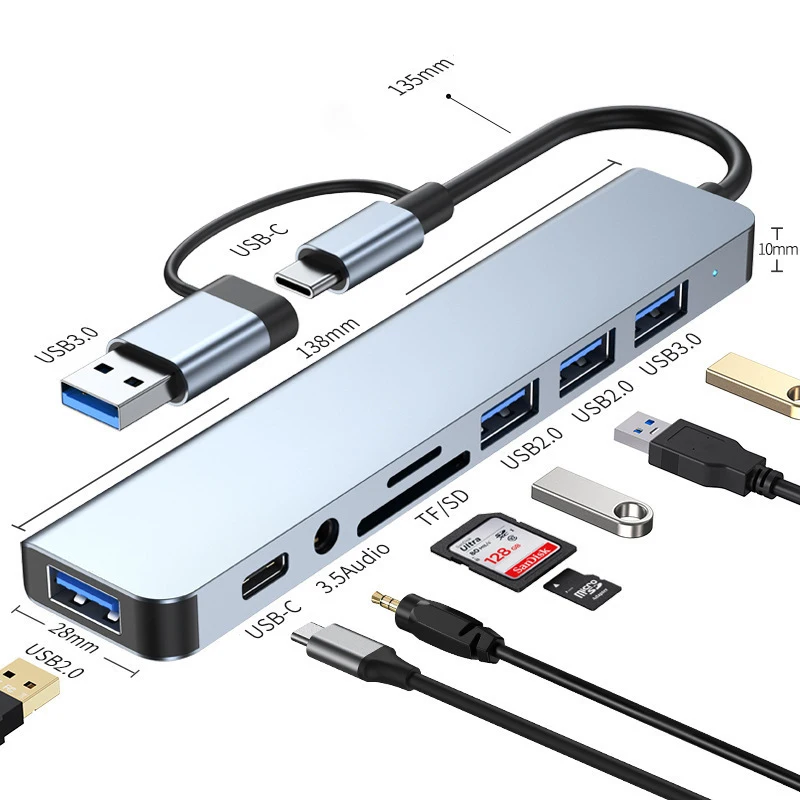
For a portable or mixed-device kit where card access and wired audio are useful, one hub listing names a microSD card reader and a 3.5 mm audio jack. Check the complete port layout against your devices before considering it; the listing title does not establish laptop display support or charging behavior.
If your desk genuinely switches between two computers, a KVM listing names a two-computer switcher and shared keyboard. That makes it a more relevant starting point than a basic hub for this particular arrangement. Confirm how switching works and which monitor combinations are supported. The title names USB 3.0, HDMI-compatible, and DP connections, but does not establish a USB-C host connection, so verify that detail before treating it as a USB-C dock. It may add little to a desk used with one computer.
For a setup built around a handheld, a dock listing names Steam Deck and the 2023 ROG Ally, along with three USB 3.0 ports, HDTV 4K@60Hz, Gigabit Ethernet, and 100W Power Delivery. Those listed connections may suit a handheld-centered setup that needs them. The title does not establish compatibility with an ordinary laptop or every configuration of the named devices.
What the product information can confirm
The buying guidance supports checking host-port capabilities, monitor arrangements, software needs, and charging details. For the three examples, the available product information is limited to merchant listing titles, not independent compatibility tests or full technical documentation. Treat the named features as listing claims and verify any compatibility detail that matters with the seller or manufacturer before buying.[1]
AliExpress
Related products
8 in 2 USB +Type C HUB Docking Station with 3.5mm Audio Jack
A candidate for a portable or mixed-device kit when a microSD reader and 3.5 mm audio jack are useful.
The listing title does not confirm laptop display support, charging behavior, or fit with a particular computer. Check its full specifications before buying.
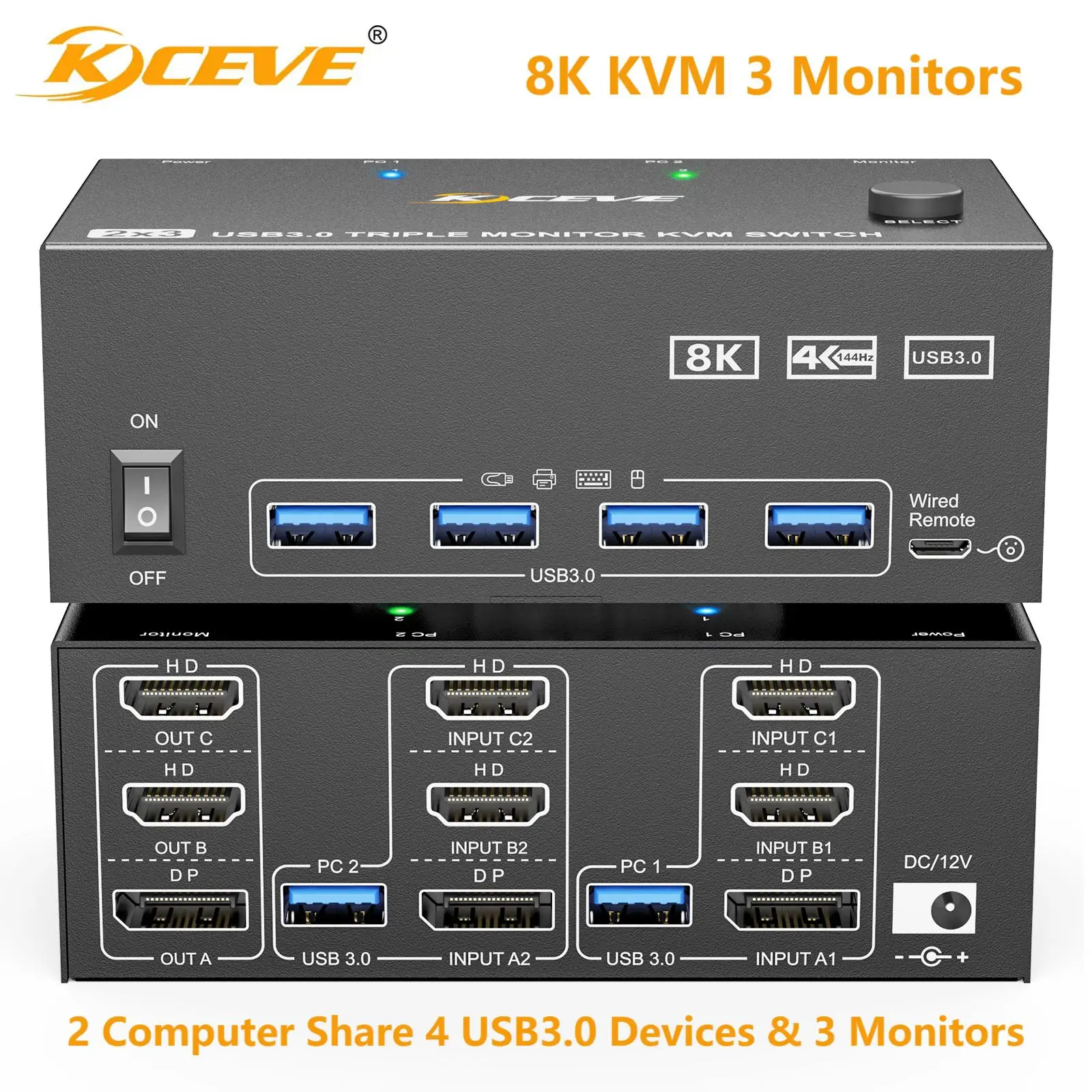
KCEVE 8K Tripe 3 Monitors KVM Switcher USB 3.0 Hub HDMI-Comp
A relevant starting point for a desk where two computers need to share a keyboard through a KVM-style switcher.
The title does not establish switching behavior, supported monitor arrangements, or a USB-C host connection. Confirm those details before treating it as a USB-C dock. It may be unnecessary for a single-computer desk.
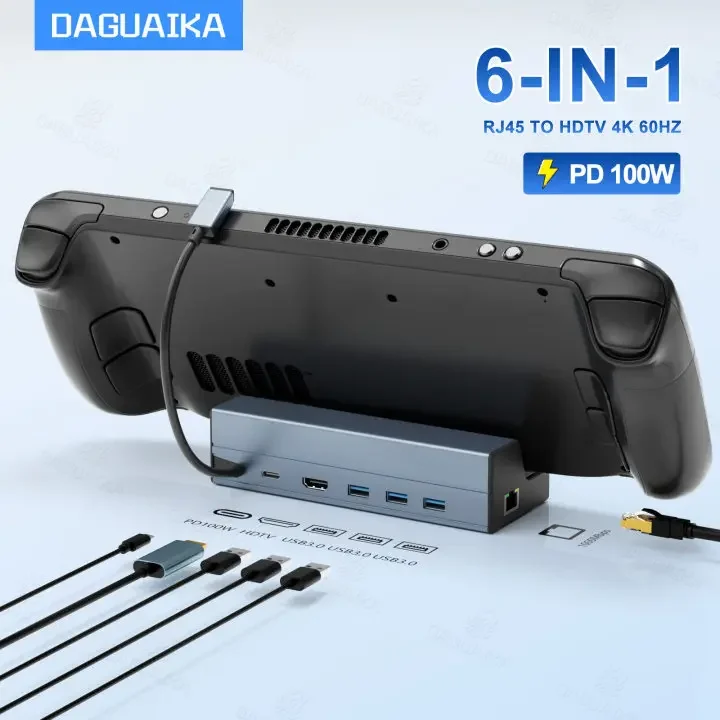
Steam Deck Dock 6 in 1 Steam Deck/Rog Ally 2023 Docking Stat
A handheld-oriented candidate whose listing names Steam Deck and the 2023 ROG Ally, along with three USB 3.0 ports, HDTV 4K@60Hz, Gigabit Ethernet, and 100W Power Delivery.
The title does not establish ordinary laptop compatibility or support for every handheld configuration. Verify the exact device and functions you need.
Questions, answered
What details should I give a seller about my monitors?
Provide the exact laptop model and operating system, the number of screens, and each screen’s resolution and refresh rate. Ask whether that complete arrangement works with your laptop and whether the dock requires display software. A list of video connectors alone does not answer those questions.[1]
What should I check if my work laptop blocks software installs?
Ask whether the dock relies on DisplayLink or another driver or app, then check with your IT team about installation permissions. The buying guidance notes that DisplayLink may require software and permissions. If installation is restricted, seek documentation confirming a suitable native-video connection for your laptop and screens.[1]